Quick Start
This guide will help you get started with VectorChord Cloud. First, you need to sign up for a VectorChord Cloud account. If you haven’t done so already, you can sign up for a free account here.
Create a cluster
You can only create Enterprise plan after you bind a credit card.
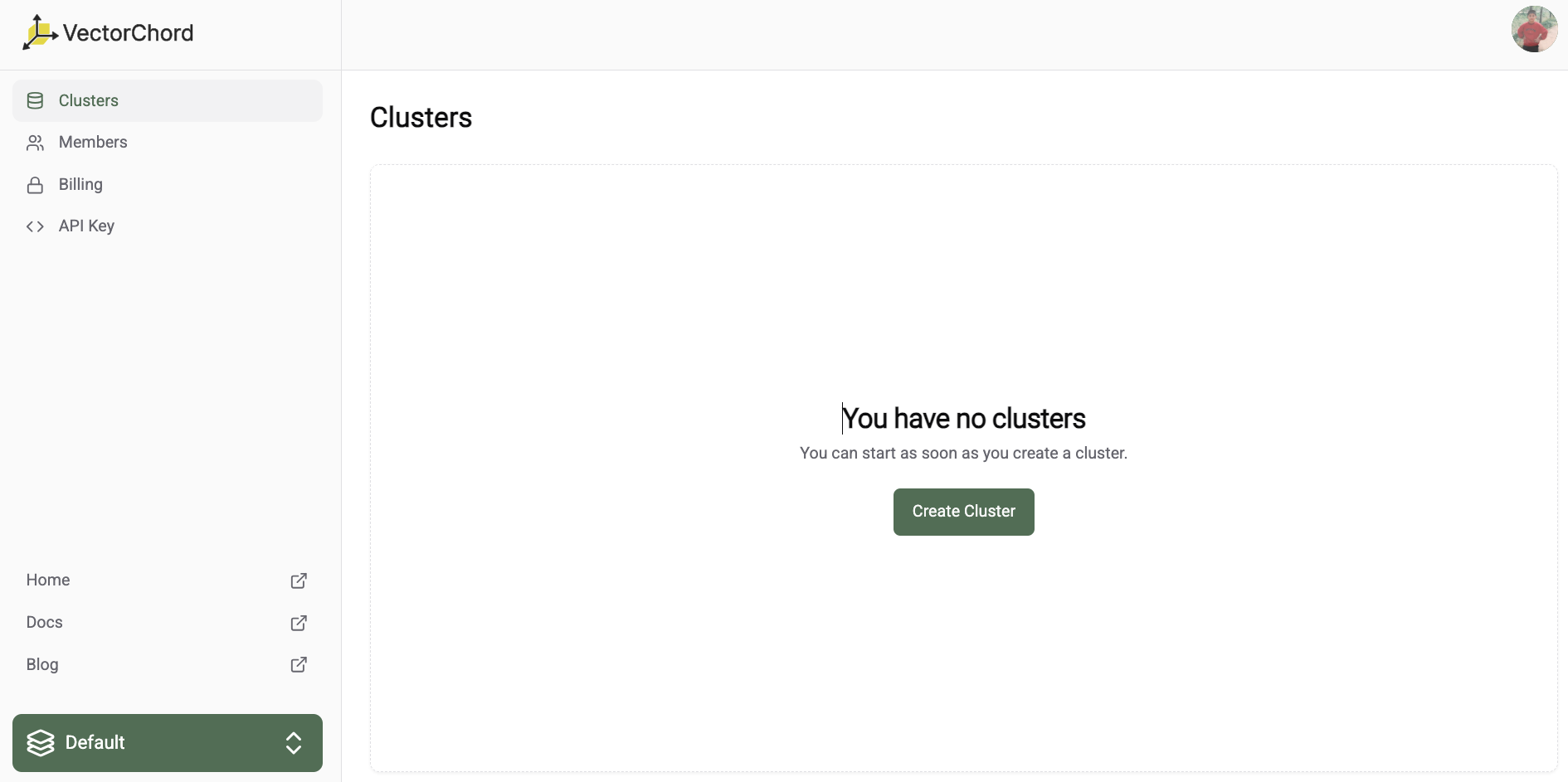
To create a new cluster, navigate to the VectorChord Cloud Console and click on the “Create Cluster” button.
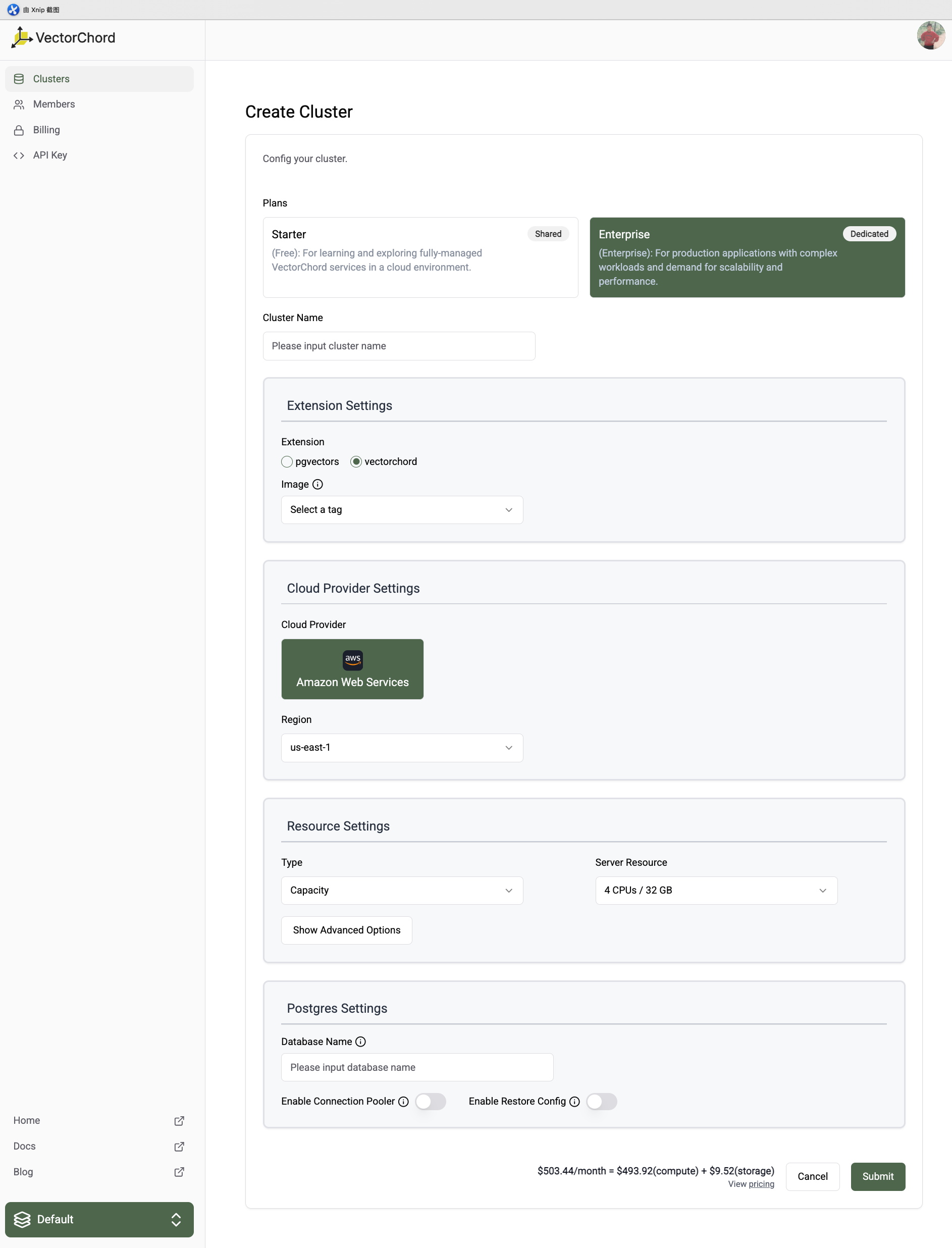
You need to specify the following information:
- Required:
- Plan: The plan you want to use for your cluster, for information about Cloud’s paid plan options, see Cloud plans.
- Cluster Name: A unique name for your cluster.
- Extension Settings:
-
Extension: We support two Vector Search extensions, pgvectors and its successor vectorchord
- vectorchord: Scalable, Fast, and Disk-friendly Vector search in Postgres
- pgvectors: Scalable, Low-latency and Hybrid-enabled Vector Search in Postgres. Revolutionize Vector Search, not Database.
WarningThe vectorchord only support server resource with NVMe SSD.
-
Image:
- VectorChord, we provide a tag in a semantic version format, for example 16-v0.1.0:
- 16 indicates the version number of Postgres major
- v0.1.0 indicates VectorChord version number
- pgvecto.rs, we provide a tag in a semantic version format, for example 16-v0.4.0-vectors-exts:
- 16 indicates the version number of Postgres major
- v0.4.0 indicates pgvecto.rs version number
- vectors indicates the installation location of pgvecto.rs scheme, optional vectors,extensions, public. Please choose public if you want to use VectorChord Cloud on AWS RDS. If you’re going to use fdw on Supabase, please choose extensions.
- exts indicates the cluster can install extensions from https://pgt.dev/.
- VectorChord, we provide a tag in a semantic version format, for example 16-v0.1.0:
-
- Cloud Provider Settings:
- Cloud Provider: The cloud provider where your cluster will be deployed, currently only AWS is supported.
- Region: The region where your cluster will be deployed.
- Resource Settings:
- Type: We provide two types of resources,
PerformanceandCapacity. - Server Resource:
- Performance:
- 1C/2G: Free tier, 1 core CPU, 2GB memory and 3Gi disk space.
- 2C/8G: Enterprise tier, 2 core CPU, 8GB memory and 15Gi disk space.
- 2C/16G: Enterprise tier, 2 core CPU, 16GB memory and 15Gi disk space.
- 4C/32G: Enterprise tier, 4 core CPU, 32GB memory and 90Gi disk space.
- Capacity:
- 4C/32G NVMe SSD: Enterprise tier, 4 core CPU, 32GB memory and 850Gi NVMe SSD disk space.
- Performance:
- Type: We provide two types of resources,
- Postgres Settings:
- Database Name: The name of the database that you will store vector data in.
- Enable Connection Pooler: (default: false): Enable the connection pooler for your cluster.
- Enable Restore Config: (default: false): Enable the restore config for your backup created in other clusters.
- Optional:
- Disk Size: Postgres PGData disk size, will change the default disk size.
- Instances: The number of instances in the cluster. The default is 1.
WarningCurrently, vector index not support streaming replication.
Cluster Info
After creating a cluster, you will be directed to the cluster info page. Here you can find the details of your cluster, such as the connection string, the status of the cluster, and resource usage of the cluster.
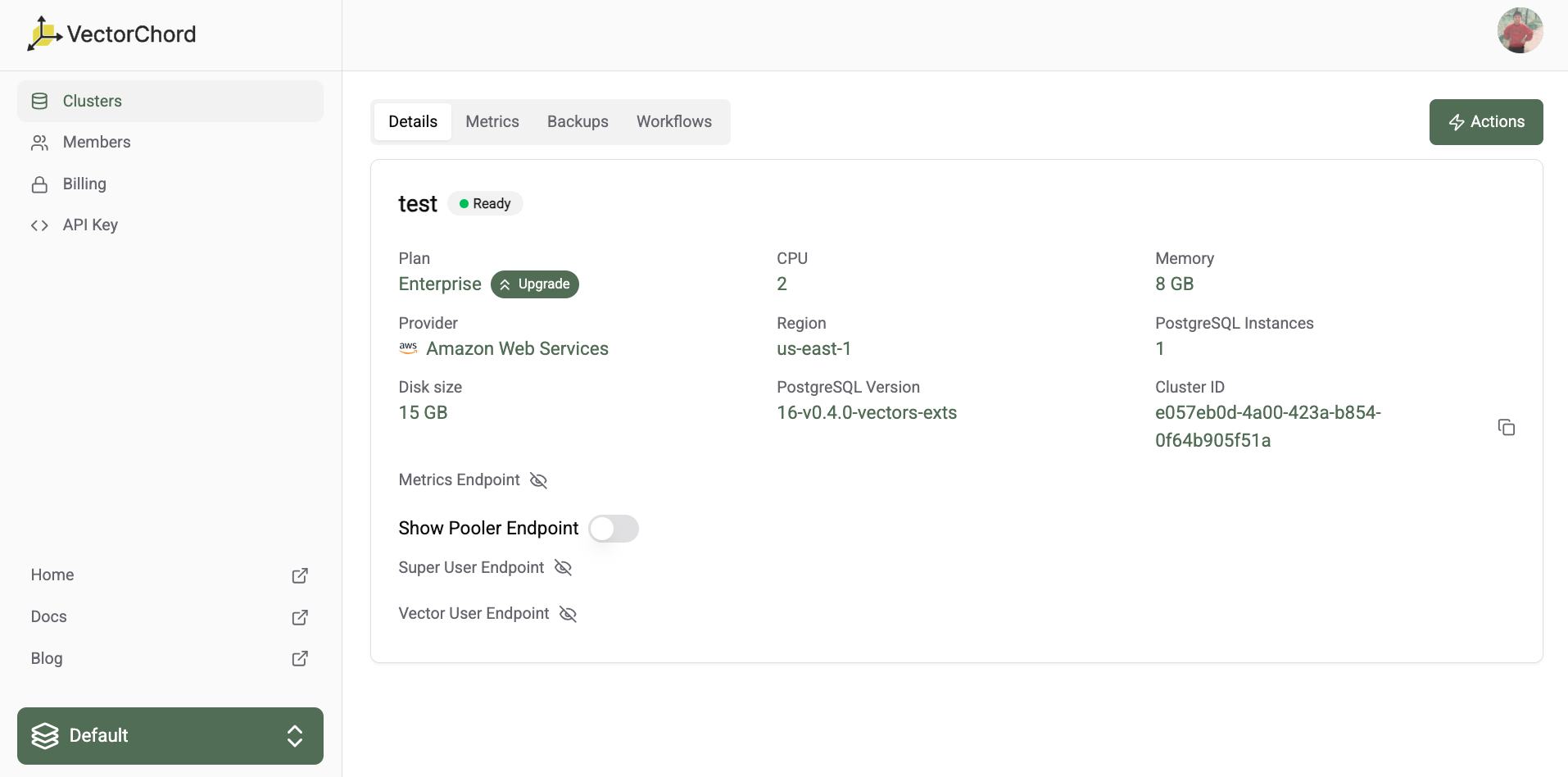
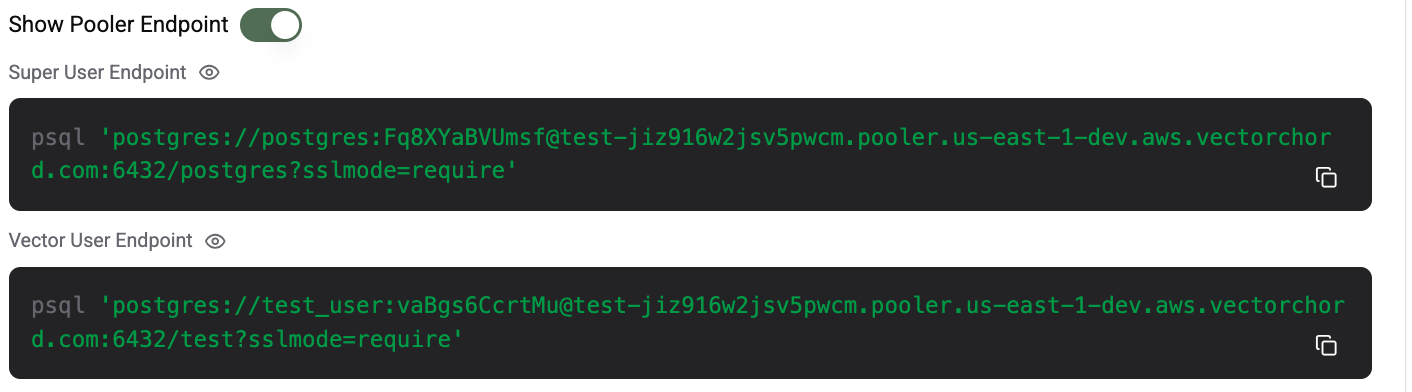
We provide two types of connection endpoints, Super User Endpoint and Vector User Endpoint respectively. For more information about the two types of connections, see Connecting with psql.
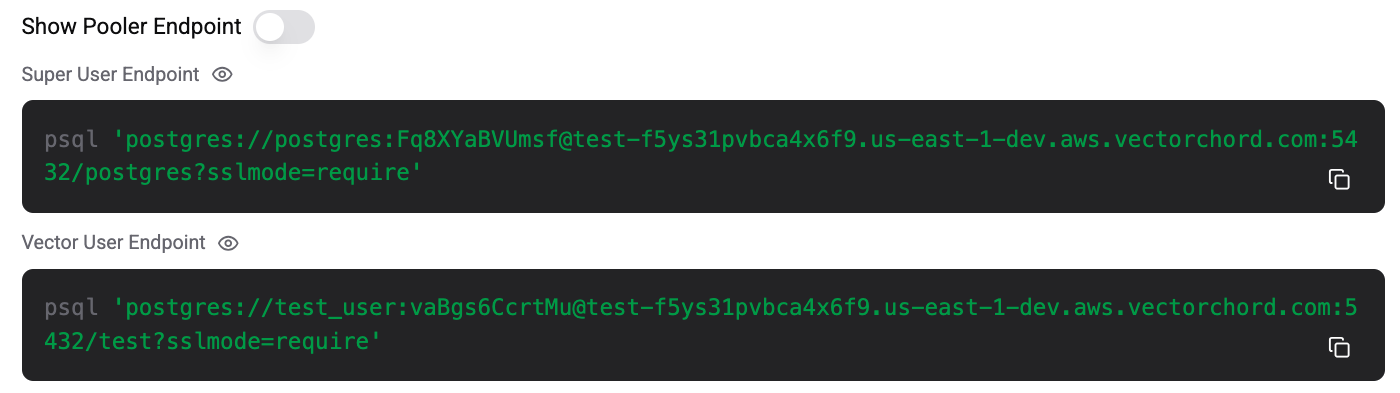
If Enable Connection Pooler is selected when create cluster, you can get the pooler connection endpoint via clicking the Show Pooler Endpoint button.
Connect to the cluster
To connect to the cluster, you can use the provided connection strings. You can connect to the cluster using the psql command-line tool. For detailed instructions on how to connect to the cluster, see Connect to VectorChord Cloud with psql. After connecting to the cluster, we can execute the following SQL query \dx to validate you have successfully installed the vectors extension.
Create Index
In quick start, we will create a simple index. If you want to create a more advanced index, see Reference. We provide rich user cases, see Use Cases.
Monitoring
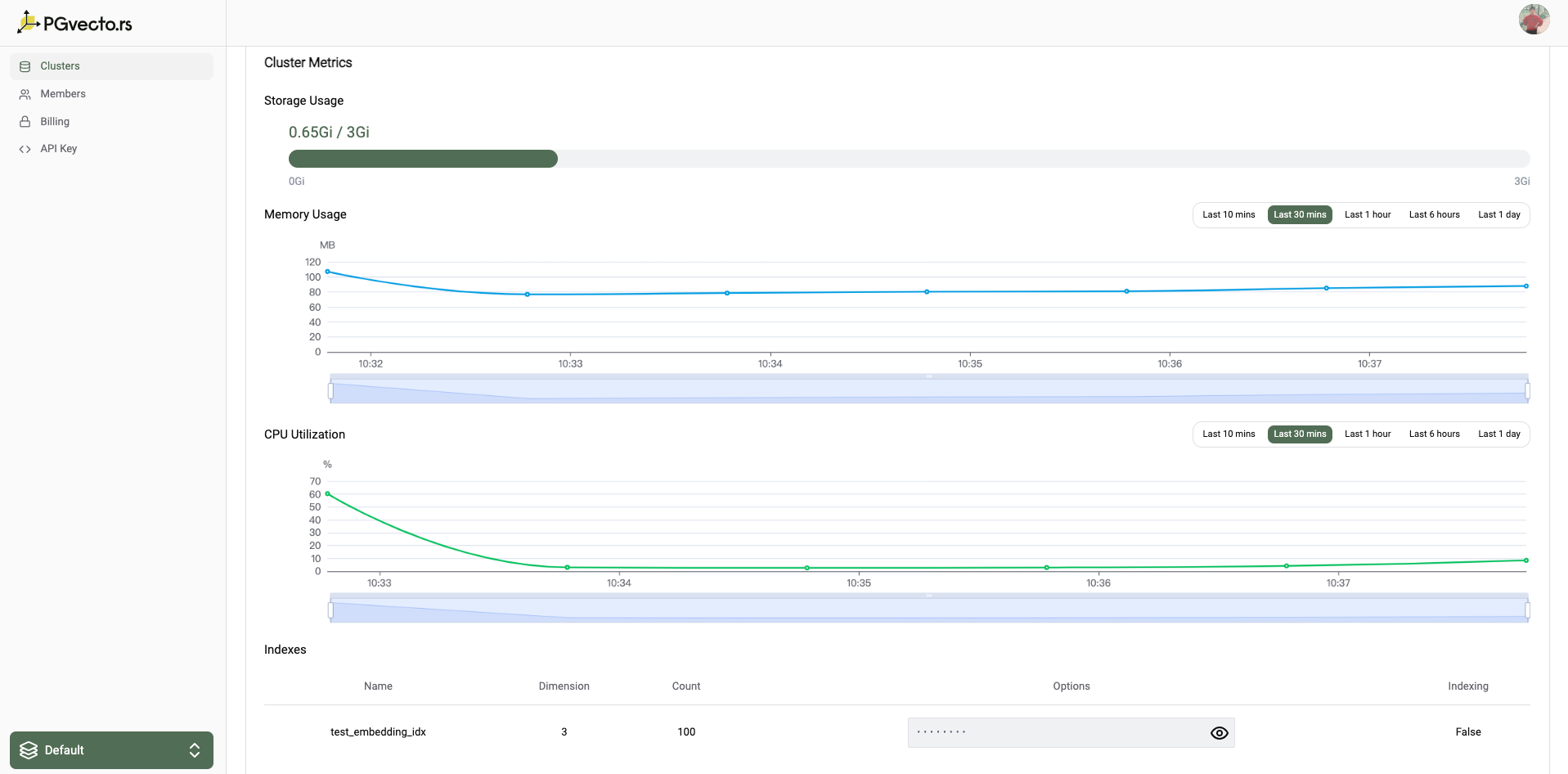
You can view the cpu utilization, memory usage and PGData disk total and usage of your cluster in the metrics page. And you can also view the index info for example the number of vectors in the index, the dimension of the vectors etc. For detailed information about monitoring, see Monitoring.